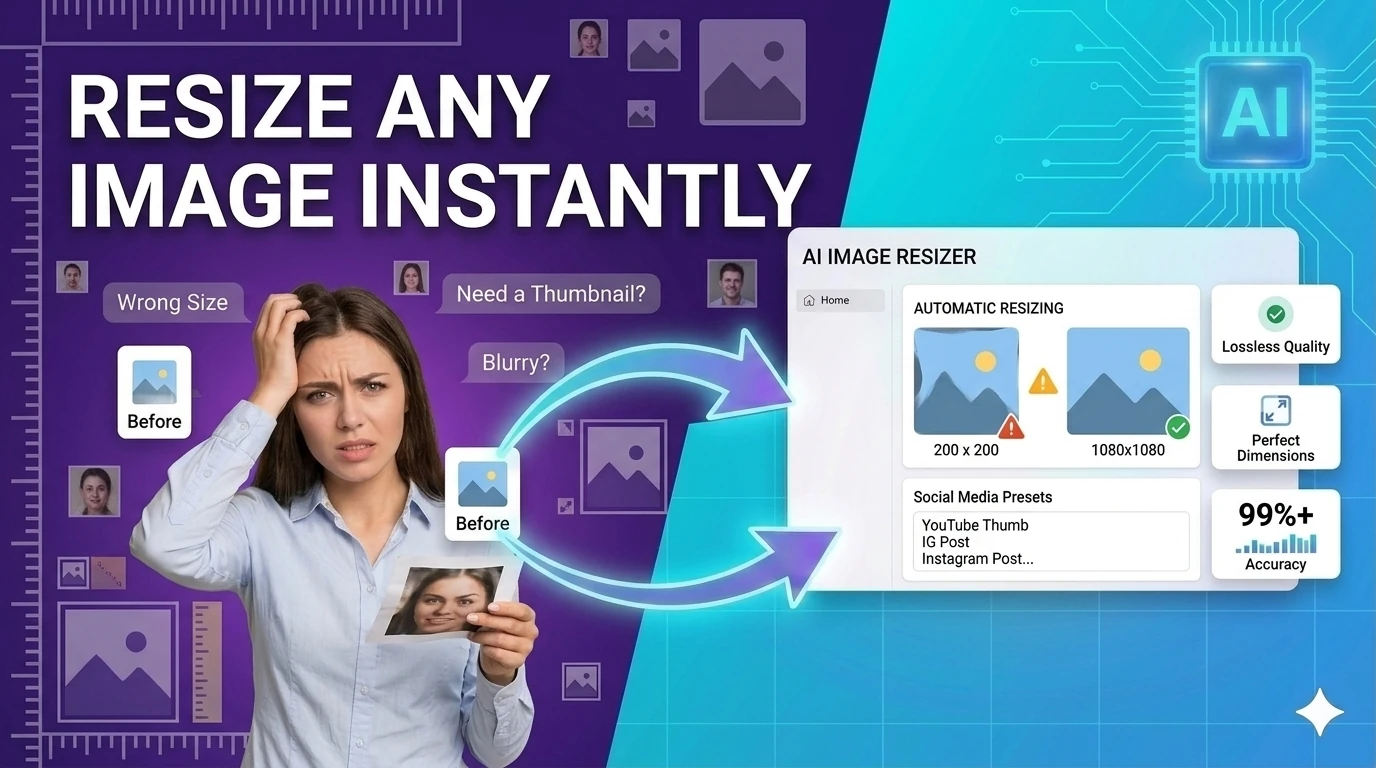
Free Image Resizer , Online Photo Resizer Tool

Free Image Resizer  ,  resize JPG, PNG, and WebP to exact dimensions online

Resize any image to exact pixel dimensions directly in your browser. Supports JPG, PNG, WebP, and GIF , maintain aspect ratio or set custom width and height. All processing runs locally on your device: no server uploads, no account, and no file size limits.

Quick Answer

How do I resize an image for free online?

Upload your image file and this browser-based resizer scales it to your chosen dimensions locally on your device, letting you download the result , no server uploads, no account, completely free.

Image ToolsFree online toolNo account requiredNo server uploadUpdated April 28, 2026

Free Online Image Resizer

Resize any image to exact pixel dimensions or a percentage of the original , instantly in your browser. No upload, no account, no server. Your file never leaves your device.

Free Online Image Resizer

Quickly and securely resize your photos for social media, websites, or personal projects. Adjust dimensions accurately while preserving aspect ratios.

1. Upload Image

Drag & drop an image here

or click to browse from your device

Supports JPG, PNG, WEBP, GIF

2. Resize Options

About Our Image Resizer

Whether you are preparing a profile picture, optimizing images for your website to improve loading times, or formatting a graphic for a specific social media platform, our Image Resizer is the perfect tool for the job. Everything processes directly in your browser, meaning your files are never uploaded to our servers, guaranteeing 100% privacy and lightning-fast speeds.

How to Use the Tool

  1. Upload your image: Drag and drop your file or click to select a JPG, PNG, WEBP, or GIF.
  2. Choose a preset: Select a standard size from the dropdown, such as Social Media or Avatar.
  3. Or set custom dimensions: Enter your exact target width and height in pixels.
  4. Maintain Aspect Ratio: Keep the box checked to avoid stretching or distorting your image.
  5. Resize and Download: Click "Resize Image" to preview, then hit "Download" to save your new file.

Key Features

  • High-Quality Rendering: Uses advanced HTML5 Canvas smoothing to ensure crisp, clear results.
  • 100% Browser-Based: Secure client-side processing keeps your data completely private.
  • Instant Previews: See exact dimension changes and a visual preview before you download.
  • Format Retention: Automatically saves in the same extension you uploaded (e.g., keeps PNG transparency).

Frequently Asked Questions (FAQ)

Does resizing an image reduce its quality?

Making an image smaller usually retains excellent quality while reducing the file size. However, enlarging an image past its original dimensions can cause it to become blurry or pixelated. We use high-quality canvas smoothing to minimize quality loss.

Are my images saved on your servers?

No. This Image Resizer is built with modern browser technologies. All processing happens locally on your device. Your photos are never uploaded, stored, or viewed by anyone else.

What does "Maintain aspect ratio" mean?

The aspect ratio is the proportional relationship between the width and height of your image. Keeping this checked ensures that when you change the width, the height automatically adjusts so your picture doesn't look stretched or squished.

What file formats are supported?

Our tool supports all standard web image formats, including JPEG (.jpg), PNG (.png), WebP (.webp), and GIF (.gif). The tool attempts to export your resized photo in the same format you uploaded.

Is this tool free to use?

Yes! Our Image Resizer is 100% free with no hidden fees, watermarks, or usage limits. You can resize as many images as you need.

What is Image Resizer?

Image Resizer is a free browser-based tool that changes the width and height of images without needing to install software or upload files to a server. You can resize by entering exact pixel dimensions (e.g., 1920×1080), by percentage of the original size (e.g., 50%), or by specifying only one dimension and letting the tool calculate the other while preserving the aspect ratio.

Common use cases include resizing photos before uploading to websites (which often have file size or dimension limits), preparing images for social media profiles (profile pictures, cover photos, post images), creating thumbnails from larger images, and reducing file size by reducing dimensions before sharing via email or messaging apps.

Unlike Photoshop or other desktop tools, this resizer runs entirely in your browser using the Canvas API , your files never leave your device, no software installation is needed, and it works on any operating system. Supported formats include JPEG, PNG, WebP, and GIF (first frame for animated GIFs).

How to use Image Resizer in 3 steps
  1. 1

    Upload or drop your image

    Click the upload area or drag and drop an image file from your computer. JPEG, PNG, WebP, and GIF are all supported.

  2. 2

    Enter your target dimensions

    Type the desired width, height, or percentage. Enable 'lock aspect ratio' to avoid distortion when resizing by only one dimension.

  3. 3

    Download the resized image

    Click Resize and download the result. The output file is ready to use immediately , no watermark, no compression artifacts.

Key features and benefits
  • Resize to exact pixels or percentage with aspect ratio lock
  • Runs entirely in your browser , images never uploaded to a server
  • Supports JPEG, PNG, WebP, and GIF formats
  • No account, no watermark, no file size limit
  • Instant results , no waiting for server processing
Common use cases

A content creator resizes a product photo from 4000×3000px to 800×600px before uploading to an e-commerce product listing that requires images under 2MB.

A developer generates multiple thumbnail sizes from a single source image for a responsive image srcset without a build tool.

A job seeker resizes a professional headshot to the exact dimensions required for a LinkedIn profile picture or an online job application form.

Why browser-based works better

Most online image resizers upload your file to a remote server, process it there, and return the result , raising privacy concerns for personal photos or sensitive documents. This tool resizes entirely in your browser using the Canvas API, so your image never leaves your device.

It is also faster than browser-based tools that use server-side processing, since there is no network round-trip.

Image Resizer FAQs

Quick answers about the workflow, privacy, and where this tool fits in a broader job.

Can I resize an image without losing quality?

Reducing image dimensions always involves some loss of detail, since fewer pixels must represent the same content. However, quality loss is minimal when downscaling by less than 50%. For upscaling (making images larger), quality will visibly degrade , no resizer can add detail that was not in the original image.

How do I resize an image to a specific file size?

Reducing dimensions directly reduces file size. As a rough guide: halving both width and height reduces file size by approximately 75%. For JPEG files, you can also adjust the compression quality level to reduce file size while keeping the same dimensions.

What image sizes do social media platforms require?

Common sizes as of 2026: Instagram square post 1080×1080px, Instagram story 1080×1920px, Twitter/X header 1500×500px, Facebook cover 851×315px, LinkedIn profile photo 400×400px, YouTube thumbnail 1280×720px.

Does resizing a JPEG image re-compress it?

Yes. When you resize a JPEG and save the result as JPEG, the image is decompressed, resized on the canvas, and re-compressed. Each compression cycle introduces a small amount of quality loss. To minimize this, use PNG for intermediate work and convert to JPEG only for the final output.

Keep the workflow moving with nearby tools that solve the next likely step.

Reviewed by

The Free AI Tools Editorial Team

Editorial review and product QA

Last updated:

Need policy details? Visit the contact, privacy, and security pages linked in the site footer.


What Is an Image Resizer?

An image resizer is a specialized media utility that changes the physical pixel dimensions of a digital image while preserving its visual content. To understand how this works, it helps to know what a digital image actually is: a two-dimensional grid of colored dots called pixels, where each pixel stores color information (typically as RGB or RGBA values). When you resize an image, you are essentially reconstructing this pixel grid at a different scale , either reducing the total number of pixels (downsizing) or increasing it (upscaling).

When you upload an image file, our browser-based tool reads the raw pixel data using the HTML5 Canvas API, applies a mathematical resampling algorithm to reconstruct the image at your target dimensions, and outputs the result in your chosen format. The tool supports two primary resizing modes: absolute pixel dimensions(e.g., setting width to 800px and height to 600px) and percentage-based scaling(e.g., reducing to 50% of original size). An optional aspect ratio lock ensures that your image does not stretch or distort when you modify one dimension.

Historically, resizing images required installing desktop software like Photoshop, GIMP, or IrfanView, or uploading sensitive photos to online services that processed them on remote servers. Today, leveraging the power of modern browser APIs and hardware-accelerated canvas rendering, we execute this transformation entirely within your web browser. The result: zero upload times, near-instant processing, and uncompromising data privacy , your photos never leave your machine. This is particularly critical when working with personal portraits, proprietary product photography, or confidential screenshots that cannot be exposed to third-party services.

Best Practices for Resizing Images

Resizing images might seem like a simple drag-and-drop task, but achieving the best possible output quality requires understanding aspect ratios, resampling algorithms, and platform-specific dimension requirements. Here are the professional guidelines every photographer, designer, and content creator should know before resizing for production:

  • Always maintain aspect ratio for photographs: The aspect ratio is the proportional relationship between width and height (e.g., 4:3, 16:9, 1:1). Stretching a photo to fit arbitrary dimensions distorts faces, objects, and landscapes, making them look unprofessional. Always keep the aspect ratio locked when resizing photos of people, products, or scenery. Only unlock it for abstract graphics or when intentionally cropping to a specific frame.
  • Understand downsizing vs. upscaling: Downsizing (making an image smaller) generally preserves or even improves perceived sharpness because the resampling algorithm averages neighboring pixels into fewer, cleaner ones. Upscaling (making an image larger) invents new pixels through interpolation, which always introduces softness or pixelation. As a rule: never upscale beyond 120% of the original size for web use, and never upscale at all for print. Always start from the highest resolution source available.
  • Match dimensions to the target platform: Every social network and web platform has optimal image dimensions. Instagram posts perform best at 1080×1080px (square) or 1080×1350px (portrait). Twitter/X cards display optimally at 1200×675px. LinkedIn article featured images should be 1200×627px. Facebook Open Graph images work best at 1200×630px. Resizing to these exact dimensions before uploading prevents the platform's automatic compression from cropping your composition unpredictably.
  • Use the right resampling algorithm: Different resizing algorithms produce different visual results. Nearest-neighbor is fastest but produces jagged edges , use it only for pixel art. Bilinear is smooth but can blur fine details. Bicubic (the default in most professional tools) offers the best balance of sharpness and smoothness for photographs. Lanczos provides the highest quality for downsizing but is computationally heavier. Our tool uses an optimized bicubic algorithm for the best speed-to-quality ratio in the browser.
  • Resize before compressing, not after: The order of operations matters significantly. Always resize your image to the final display dimensions first, then apply compression. If you compress a full-resolution image and then resize it, the compression artifacts from the large file get amplified and become more visible in the smaller output. Conversely, resizing first reduces the total pixel count, allowing the compressor to distribute bits more efficiently across the remaining pixels.

Key Features of This Image Resizer

Built to serve everyone from casual social media users to professional photographers, this tool packs a powerful feature set behind a clean, zero-friction interface.

100% Client-Side Privacy

Your photos never leave your device. All resizing occurs directly on your computer's CPU via the browser's native Canvas API , no data is transmitted to any server, ever.

Broad Format Support

The tool natively accepts the web's most widely used image formats , JPG/JPEG, PNG, WebP, and GIF , covering the vast majority of image files users encounter daily across cameras, phones, and design software.

Lightning-Fast Processing

Because you don't wait for images to travel across the internet to a remote server, the resizing process begins the instant you click resize and finishes in seconds , even for high-resolution photographs.

Pixel & Percentage Modes

Choose the input method that fits your workflow. Enter exact pixel dimensions for platform-specific requirements, or use percentage scaling for quick proportional adjustments without a calculator.

No File Size Limits

Since processing runs entirely in your browser and no file is hosted on our infrastructure, we impose no artificial paywalls, no conversion quotas, and no per-file size restrictions. Resize files as large as your device RAM allows.

Cross-Platform Ready

Whether you are on a Windows PC, an Apple Mac, or a Linux machine, if you have a modern web browser (Chrome 60+, Firefox 55+, Safari 12+), the tool works flawlessly without installing any software.

Common Use Cases: Who Uses an Image Resizer?

Image resizing is a universal need that spans countless professions and daily tasks. Here are the most common real-world scenarios in 2026:

Social Media Managers

Social media professionals resize campaign images to platform-specific dimensions daily , 1080×1080px for Instagram, 1200×675px for Twitter/X, 1200×630px for Facebook. Using a browser-based resizer eliminates the need to open heavy design software for simple dimension adjustments.

E-Commerce Store Owners

Online retailers need product photos in multiple sizes: large originals for zoom views, medium thumbnails for category grids, and small icons for cart previews. A resizer allows them to generate all variants from a single high-resolution source photo without quality loss.

Bloggers & Content Creators

Writers and YouTubers resize featured images, thumbnails, and inline photos to fit their website's content width and improve page load speeds. Oversized images are the number one cause of slow blogs; resizing to the exact display dimensions dramatically improves Core Web Vitals scores.

Web Developers

Frontend developers resize hero images, icon sprites, and responsive picture sources to match breakpoint requirements. Generating multiple srcset sizes from a single source image ensures that mobile users download only the pixels they need, saving bandwidth and improving load times.

Real Estate Agents

Real estate professionals resize property photos for MLS listings, which often enforce strict maximum dimensions and file sizes. A quick browser-based resize ensures their listings meet platform requirements without needing to re-export from editing software.

Students & Educators

Students resize screenshots and diagrams for presentations, reports, and portfolio submissions where file size limits are enforced. Educators resize high-resolution textbook scans and microscope images to fit slide decks and learning management systems.

Frequently Asked Questions

How do I resize an image for free online?
Upload your image file using this browser-based resizer. It processes the file locally on your device, scales it to your chosen dimensions, and lets you download the result , no server uploads, no account, and completely free.
What image formats can I resize?
The tool supports the most common web image formats, including JPG/JPEG, PNG, WebP, and GIF. Simply upload your image, set your target dimensions, and the resizer will process it while preserving visual quality.
Can I resize an image without losing quality?
Yes. When downsizing (making an image smaller), the tool uses high-quality bicubic resampling to maintain sharpness and clarity. For upscaling, the tool applies intelligent interpolation, though enlarging beyond the original resolution will always introduce some softness. For best results, always start from the highest resolution source available.
Is my image uploaded to a server when I resize it?
No. All processing happens locally in your browser using the HTML5 Canvas API and native JavaScript image manipulation. Your image file never leaves your device, ensuring complete privacy and security.
What is the difference between resizing and compressing an image?
Resizing changes the physical pixel dimensions of an image , for example, converting a 4000×3000 photo to 800×600 for web use. Compression reduces the file size without changing dimensions by removing redundant data or lowering quality. This tool performs resizing; you can then use our separate Image Compressor tool to further reduce file size if needed.
Are there any file size limits on the image I can upload?
No. Because all processing occurs in your browser and no file is uploaded to our servers, we do not impose any file size limits. The only practical ceiling is your device's available RAM, which can comfortably handle most standard image files.

Looking for more free browser-based media utilities? Explore the tools below , all processed client-side with the same zero-upload privacy guarantee.

TheFreeAITools , Image Resizer is a fully private, browser-based tool that resizes image files to custom pixel dimensions. All processing runs locally on your device using the browser's native Canvas API , your photos never leave your computer. Supports JPG, PNG, WebP, and GIF , making it the fastest free way to resize images for web, social media, and print use in 2026, with no installs, no accounts, and no hidden limits.

☕ Support Us