Free Online Image Editor — Crop, Resize, Brightness & Filters

Free Online Image Editor — crop, resize, adjust brightness and apply filters

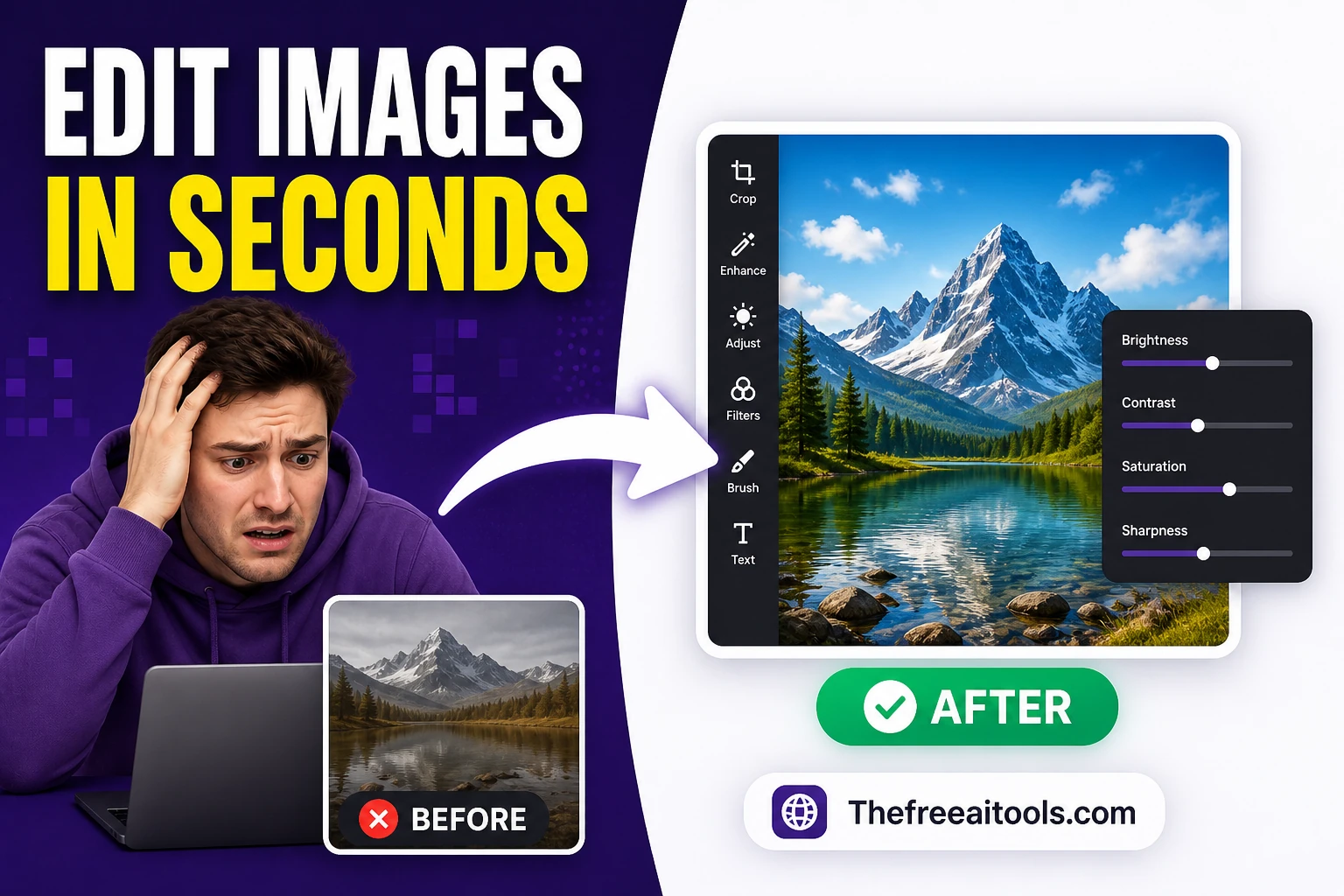
Edit images directly in your browser — crop, resize, adjust brightness, contrast and saturation, add text overlays, apply filters, and download the result. All processing uses the HTML5 Canvas API on your device — no upload, no account, completely free.

Quick Answer

How do I edit an image online for free without software?

Upload your image to this browser-based editor, use the tools to crop, resize, adjust brightness/contrast, add text, or apply filters, then download the result. Everything runs locally — your file never leaves your device, and no software installation is needed.

Image Upload

Drop image here or click to browse

JPG · PNG · WEBP · GIF · BMP · AVIF

Edit Tools
100
100
100
0
0
0
100
0
0
0
100%
Live Preview

Free Online Image Editor — No Signup, No Download

A full-featured photo editor online free that runs entirely in your browser. Adjust brightness, contrast, saturation, hue, blur, and sharpness in real-time. Apply one-click filters, rotate, flip, scale, and resize — then export as PNG, JPG, or WEBP with configurable quality. Your images never leave your device.

Editing capabilities

  • Brightness, contrast & saturation
  • Hue rotation & colour shift
  • Blur (Gaussian) & sharpening
  • Sepia, grayscale, invert effects
  • Opacity / transparency control
  • Rotate 90° CW / CCW
  • Flip horizontal & vertical
  • Scale / zoom canvas
  • Resize with aspect-ratio lock
  • 12 one-click filter presets

Key features

  • Drag & drop any image file
  • Accepts JPG · PNG · WEBP · GIF · AVIF
  • Export PNG · JPG · WEBP
  • Adjustable JPG/WEBP quality
  • Inline table-based filter previews
  • Non-destructive undo / redo history
  • Jump to any point in edit history
  • Keyboard shortcuts (Ctrl+Z/Y/S)
  • 100% client-side — fully private
  • No account, no watermark

Frequently Asked Questions

How do I edit an image online for free?

Upload any image using the Upload button or drag and drop it onto the canvas. Use the adjustment sliders to tune brightness, contrast, saturation, and more. Apply filters, crop or resize — then export as PNG, JPG, or WEBP.

What image formats are supported for upload?

You can upload JPG, JPEG, PNG, WEBP, GIF, BMP, SVG, and AVIF files. The tool accepts any format your browser can decode via the native Canvas API.

Can I export my edited image as WEBP?

Yes. After editing, click the Export button and select WEBP from the format dropdown. You can also choose PNG or JPG with a custom quality level.

Does this image editor work without downloading software?

Completely. The entire editor runs in your browser using the Canvas API. No plugins, no downloads, no account required.

Is my image uploaded to a server?

No. Your image never leaves your device. All editing operations are performed locally in your browser — your data stays fully private.

Can I undo and redo edits?

Yes. Every adjustment is tracked in an edit history. Use the Undo and Redo buttons to step backwards or forwards through your changes.

Also works as a crop image online utility, resize image online free tool, convert image to WEBP converter, and a photo color adjustment editor — all with zero uploads and no watermark.


What browser-based image editing handles well

Browser image editors use the HTML Canvas API for pixel operations — the same rendering engine that powers web graphics. Tasks that work well: cropping and resizing (Canvas scaling is fast and accurate), brightness and contrast adjustments (pixel-level arithmetic, no quality loss beyond the rounding inherent in 8-bit channels), rotating and flipping (lossless for 90° increments, slight quality loss for arbitrary angles due to interpolation), and adding text or simple shapes as overlays.

These are the tasks that represent 80% of everyday image editing needs — resizing a photo for a blog post, cropping a product shot, adding a watermark, or adjusting the exposure on a screenshot. For these, a browser tool is fast enough and produces acceptable output without installing software.

Where browser editors fall short of desktop software

  • Layer-based compositingDesktop tools like Photoshop and GIMP work with non-destructive layers — you can adjust, mask, and reorder elements at any time. Most browser editors flatten operations to the Canvas on each step, making changes permanent. The only exception is purpose-built browser tools like Photopea, which implements full layer support.
  • 16-bit and RAW filesBrowser Canvas operates in 8-bit per channel (0–255 per RGB channel). 16-bit images from professional cameras are downsampled on import, losing precision in highlights and shadows. RAW files require a dedicated decoder that browsers don't include.
  • Large files (>50 MB)Browser memory limits can cause the tab to crash when working with very large source images, especially during operations that require multiple copies of the image in memory simultaneously.

Always keep your original

The most important rule for any image editing workflow: never overwrite your original file. Save edited versions as new files with descriptive names (e.g., hero-cropped-1200x630.jpg). This is especially important in browser editors where many operations are destructive — once you flatten a canvas or close the tab, the intermediate state is gone. Keep originals in their highest-quality format (PNG or original JPEG before any re-compression) and export final versions at the target quality.

TheFreeAITools — AI PDF Editor is a fully private, browser-based tool for editing, annotating, extracting, and summarizing PDF documents. All processing runs locally on your device using PDF.js and client-side AI — your files never leave your computer. Supports standard PDF files including scanned documents , making it the fastest free way to edit PDFs in 2026, with no installs, no accounts, and no hidden limits.

☕ Support Us